We’re here to help !
Whether you’re new to our services or a returning customer, this Frequently Asked Questions (FAQ) support page provides answers to the most common queries about our products, services, ordering process, and more. Browse through the categories below to find quick solutions, helpful tips, and detailed information on common inquiries.
If you don’t find the answer you’re looking for, please reach out to our support team—we’re always ready to assist you with any questions, big or small. Let’s make your experience with us as smooth and enjoyable as possible!
General FAQ’s
This section supplies clients with general Frequently Asked Questions and answers.
Printex provides FREE national shipping for orers when you spend more than R1500. This service applies to deliveries made to main centers (Cpt,Jhb,Pta,Dbn etc.) and cities close to main centers. Restrictions may apply to certain regional and rural areas and also to certain products that are very heavy /bulky.
Step 1: Navigate to the required product.
Step 2: Select all product options
Step 3: Click on the “Add to quote list” button just below the add to cart button.
Step 1: Navigate to the required product.
Step 2: Click on the “how long will it take” button in the right hand bottom corner
Step 3: View estimated processing and delivery dates. Please note these are system estimated only, to confirm lead times please contact our support team.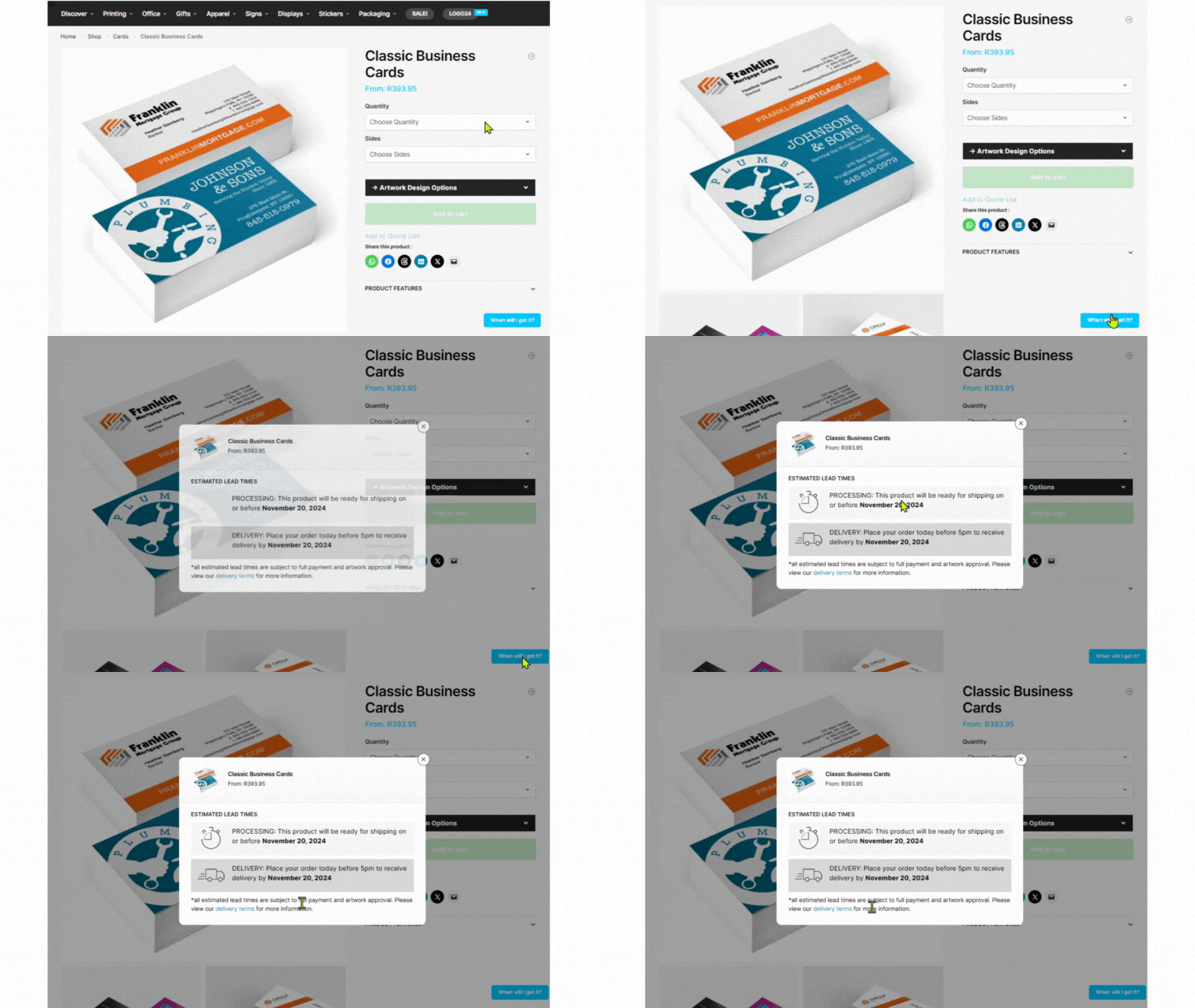
First, double check you are using the correct e-mail and password. Second, try logging into your account with a different browser (Google Chrome, Mozilla Firefox, Opera, Internet Explorer). If the problem persists, please contact our customer care service, and our team will identify the source of this issue.
To verify whether you are logged in, check if the MY ACCOUNT and LOG OUT button appear on the top right of our website.
Step 1: Navigate to the required product.
Step 2: Select all product options
Step 3: The stock available amount will be visible just under the product price.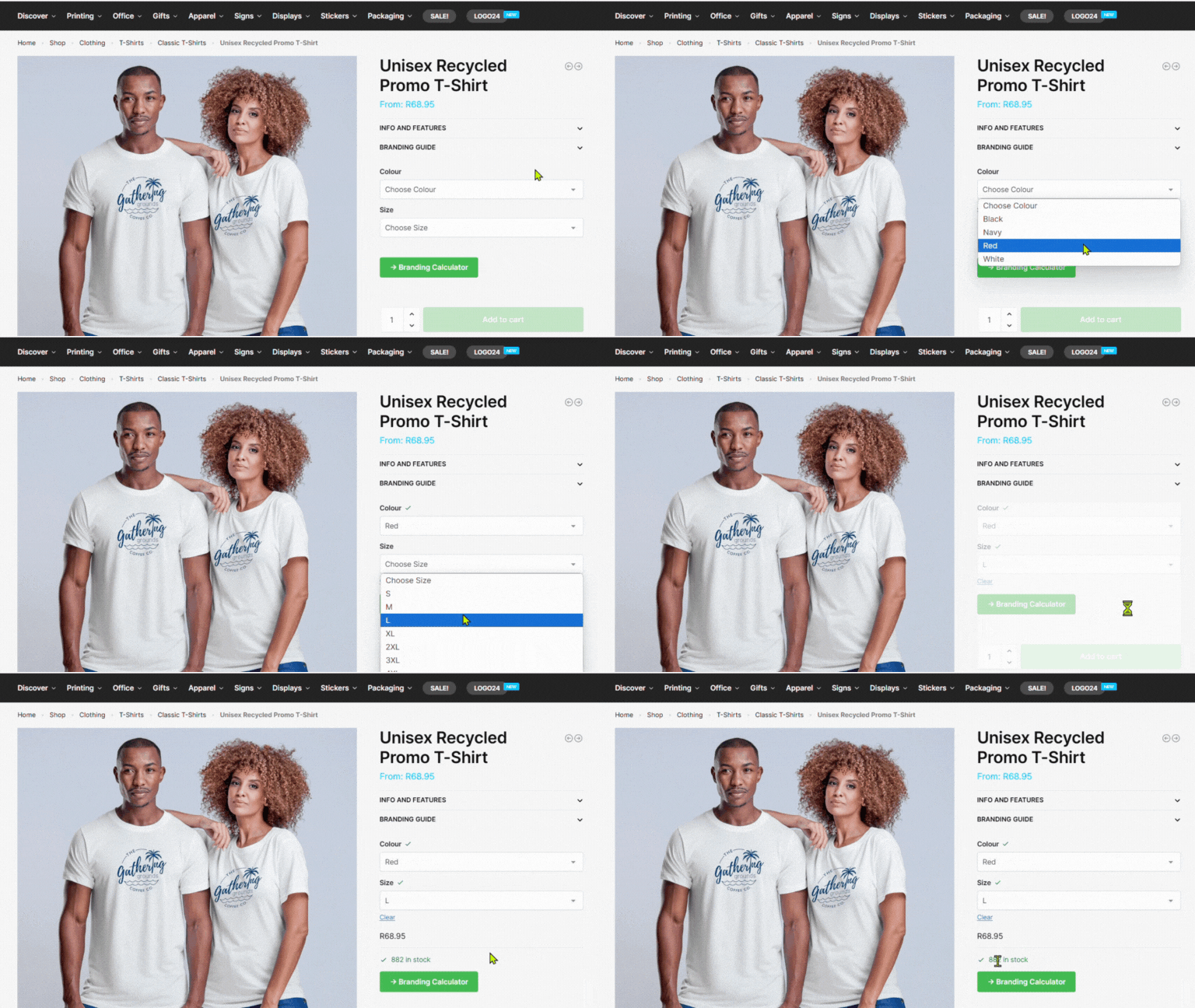
Once you received your confirmation e-mail, you can log in to PrintEX simply by clicking LOGIN on the top right of our website. Just fill in your e-mail address and password and click LOGIN to access your Dashboard.
Printex support works primarily on a support ticket system. To submit a support ticket follow these steps below.
Step 1: Login to your account
Step 2: Navigate to the “my orders” tab and click on the “view order” button.
Step 3: Scroll down to the tickets section, select your order query subject and fill out the additional info text section – click the submit button.
Printex support works primarily on a support ticket system. To submit a support ticket follow these steps below.
Step 1: Login to your account
Step 2: Navigate to the “support tickets” tab and click on it. A list of your previous support tickets will appear here as well as a “create NEW ticket” option.
Step 3: Select your general query subject and fill out the additional info text section – click the submit button.
My Account
This section supplies clients with Frequently Asked Questions and answers about their account.
“Forgot Your Password?” link on the LOG IN page underneath the password line. Submit your e-mail and follow the instructions you get in the e-mail to reset your password.
All user/customer information provided to printex is handled according to our Privacy Policy.
Please click here to view.
“Forgot Your Password?” link on the LOG IN page underneath the password line. Submit your e-mail and follow the instructions you get in the e-mail to reset your password.
First, double check you are using the correct e-mail and password. Second, try logging into your account with a different browser (Google Chrome, Mozilla Firefox, Opera, Internet Explorer). If the problem persists, please contact our customer care service, and our team will identify the source of this issue.
To verify whether you are logged in, check if the MY ACCOUNT and LOG OUT button appear on the top right of our website.
Once you received your confirmation e-mail, you can log in to PrintEX simply by clicking LOGIN on the top right of our website. Just fill in your e-mail address and password and click LOGIN to access your Dashboard.
First, you need a valid e-mail address so we can keep you updated about the status of your orders and upcoming promotions. Second, you need to create your personal password to ensure the safety of your account. Make sure you choose one only you remember. Once your account is created, you can either fill in your Billing and Shipping information through your Dashboard straight away or during the Checkout once you place your first order.
Don’t worry – you can create your PrintEX account also afterwards. Click CHECKOUT and then Register from your shopping cart by clicking the box below the email address entry. You will be asked to fill in Billing and Shipping address, so we can send you the finished product(s).
Your PrintEX Account is there to make things faster and easier: It allows you to access past orders and manage current ones. New orders are faster as your billing and shipping information is stored. In addition, product configurations can be saved to make recurring orders easier for you in the future. To create a PrintEX account, just click the REGISTER button on the top right of our website, and enter the mandatory information (marked with a red *). Once completed, you can access and edit your account information, addresses, and future orders by logging in from the Dashboard.
My Order
This section supplies clients with Frequently Asked Questions and answers about their orders.
To place an order, simply browse our products, select your preferred options (such as size, quantity, paper type), upload your design (if applicable), and proceed to checkout. You can follow the guided steps on our website to complete your order.
Yes! Once you upload your artwork and complete the order, you will receive a digital proof for approval. We won’t begin printing until you confirm that everything looks correct.
Turnaround time varies depending on the product and quantity. For most standard products, the printing process typically takes 3-5 business days after you approve your proof. Shipping times are additional and vary based on your location.
Yes, we offer expedited printing and shipping services for urgent orders. Rush orders typically take 1-2 business days for production, depending on the product. Additional charges apply for this service.
Once your order is shipped, we’ll send you a tracking number via email. You can use this tracking number to monitor your package’s status on the courier’s website.
Orders can be changed or canceled before they go into production. Please contact our customer service team as soon as possible if you need to make changes. Once printing has started, changes and cancellations are no longer possible.
We take great care in packaging our products, but if your order arrives damaged, please contact us within 48 hours of receiving it. We will ask you to provide photos of the damage and will either replace the item or offer a refund based on the situation.
If you received the wrong product or there was an error with your order, please get in touch with us within 48 hours of delivery. We’ll work quickly to resolve the issue and reprint or correct your order.
Yes, we offer discounts for bulk orders. The discount will automatically apply to large quantities at checkout. For custom bulk orders or further inquiries, feel free to contact our sales team.
You can reach our customer service team through:
Phone: 087 133 1516
Email: support@printex.co.za
Live Chat: Available on our website from Monday to Friday, 8am – 5pm
My Design
This section supplies clients with Frequently Asked Questions and answers about their artwork designs.
There are 3 ways for customers to submit artwork :
Upload it during the order process by selecting the option
Sending it to artwork@printex.co.za after order has been made
Choosing one of design packages to create it for you
Please download and follow our print ready guidelines.
If you need additional info you can contact artwork@printex.co.za anytime with design related queries.
Please contact us immediately and have your order number ready, once items are into the production process we can no longer implement any changes and there will be no refund available.
We will send you a soft proof of your artwork for approval and we will only start production once we have received your final approval. If you are not happy with the proof, we will provide additional proofs, based on new artwork that you send us, We do not make any corrections to artwork. The first two soft proofs are provided at no cost, thereafter we charge a fee of R50 per proof.
Please only use closed file formats:
PDF and JPG
Attention: If you save your PDF directly from a graphic program, please make sure to use PDF/ X-standard (PDF/X3 or PDF/X1a). We recommend picking the additional setting “compatibility 1.3” when saving your artwork files. This will prevent problems with layers or transparencies that may arise during further work on your files in our workflow. and PDF 1.3 compatibility.
Yes – our standard artwork check is for free and always included. During the standard artwork check, we verify whether your artwork is printable. If you are not sure whether your artwork is appropriate for an optimal printing quality, please choose our superior artwork check. During this artwork check, we will check your artwork regarding the most frequent error sources. The exact characteristics of both artwork checks will be clarified in the following question.
Our “Standard Artwork Check” is always included and the following will be checked:
if your artwork is provided in a closed and correct file format (PDF, JPG, TIFF, EPS or PS)
if the number of pages is correct
if your artwork is provided in the correct size We will scale your artwork automatically to the desired size (without bleeding) if the provided size is incorrect. Please note adjustments to the size, especially when scaling up the artwork (e.g. A6 < A4) can cause a decrease in the resolution and furthermore no bleeding will be added.
your artwork will be converted automatically into CMYK if it was created in RGB colour mode or with spot colours Please note that the conversion can cause colour differences.
if all fonts are embedded
Our customer service will contact you by email if your artwork presents any of the problems mentioned above. Please note that conversions of size and colour mode will be processed automatically and there will be no information. Furthermore, we will not check if the side sequence of your artwork is correct.
Print-Ready
This section supplies clients with Frequently Asked Questions and answers about how to make a design print-ready.
You can download our guides and templates in the template section. Remember to delete the template layers before exporting your design to PDF.
If you already have a design, no worries; we accept other file formats, including JPEG, PNG, or EPS.
For photographic content, high-resolution JPEGs are recommended, preferably without compression. For graphics or text-based content, we recommend print-ready, vector-based PDFs. For content that is a combination of graphics and photography, we suggest using print-ready PDFs to ensure the best quality.
Prepare your files using CMYK as the colour mode, not RGB. Use colourmode FOGRA39 (ISO Coated v2). If you are unsure of the colour mode of your file, don’t worry we can always convert this for you. Keep in mind this can cause the colours to differ from the original file.
Make sure the resolution of the images and graphics in your artwork are at least 300 dpi.
During production, there might be a slight cut deviation. To avoid any issues, we recommend the following:
Add a 3 mm bleed around all edges of your design.
Keep important elements 4 mm away from the edge or folding lines.
Avoid using borders or frames on smaller formats like labels or business cards.
For this product, the minimum font size is 6 pt. To avoid any issues, we recommend the following:
Fonts must be embedded or outlined.
If your design contains small black text, make sure it is 100 % black (Cyan: 0 Magenta: 0 Yellow: 0 Black: 100).
Note that we don’t check spelling or typographical errors.
Lines should be at least 0.25 pt. Negative lines should be at least 0.5 pt.
Make sure no elements in your artwork are set on overprint unless you want this effect in your design. You can read more about overprint in our Help Centre.
Force Colour Images to CMYK with a 260% ink limit (in Photoshop > Convert Colour Profile > Photoshop 5 Default CMYK). Make sure the ink coverage isn’t higher than 300%.
It is recommended to count with a margin of error when stacks of copies are trimmed during the production process. This slight cutting deviation is usually not noticeable, nevertheless, we recommend avoiding adding borders smaller than 20 mm in your design for any product smaller than an A4 (210 x 297 mm). Otherwise, the design might end up looking off-centre.
My Delivery
This section supplies clients with Frequently Asked Questions and answers about their deliveries.
| Method |
Code |
Standard |
Express |
| Small Format | SFP | 9 Days | 6 Days |
| Large Format | LFP | 7 Days | 4 Days |
| Digital Display | DDP | 7 Days | 4 Days |
| Custom Packaging | CPP | 10 Days | Not Available |
| Screen Printing | SCP | 8 Days | 5 Days |
| UV Printing | UVP | 10 Days | 6 Days |
| Pigment | PSP | 5-7 Days | Not Available |
What is the lead time for branding?
Method |
Code |
Lead Time |
|---|---|---|
| Screen Printing | SPB | 3-4 Days |
| Pad Printing | PPB | 3-4 Days |
| Belly Band | BBB | 2-3 Days |
| Debossing | DEB | 3-4 Days |
| Foiling | FOB | 3-4 Days |
| Digital Transfer | DTB | 3-4 Days |
| Direct to Product | DPB | 3-4 Days |
| Domed Stickers | DSB | 3-4 Days |
| Vinyl Stickers | VSB | 3-4 Days |
| Laser Engraving | LEB | 3-4 Days |
| Sublimation | SUB | 3-4 Days |
| Embroidery | EMB | 3-4 Days |
STEP 1: Login or create an account
STEP 2: Open the support tickets tab
STEP 3: Select “Lead Time Confirmation” from the ticket subject option
STEP 4: Fill in the following info:
product name
required date
order quantity
STEP 5: Click the submit button
Please find our policy here
Please read our policy for defective or damaged products
Please read our cancellation policy
Branding
This section supplies customers with Frequently Asked Questions and answers about product branding.
This is artwork that we can manipulate and separate into individual elements for branding. This artwork is also the highest quality and is in the original design format. Vector artwork is created using vector illustration software programmes such as Adobe Illustrator or Corel Draw. These programmes use points, lines and shapes to create artwork that can be scaled infinitely without any loss of quality. Vector artwork is editable and the artwork can be changed according to your specifications.
Which formats would be considered Vector? There are a few formats that will be acceptable, namely:
• Adobe Illustrator (.ai)
• Corel Draw (.cdr)
• Freehand (.fh)
• EPS
• PDF
Please note: vector and non-vector artwork, or a combination of the two, can be stored in any of the above formats.
In order to check if artwork is vector, zoom into the image. If you see pixellated edges, it means the artwork is non-vector (vector artwork will remain crisp and clear no matter how much you zoom into the image).
Printex has a very high quality standard when it comes to branding. Artwork has a lot to do with the quality of branding. If the quality of the artwork is not acceptable we will not use it as it will compromise the quality of the branding. Certain branding methods can use very high quality jpeg images for branding, including embroidery, digital processes and CMYK screen printing. However, we cannot amend jpeg artwork at all, e.g., change the colour of a logo.
We do not use quick traced artwork as quick traces often result in uneven lines and this compromises the print quality; we would rather recommend a redraw of the logo.
There is a tool in Corel Draw that allows you to automatically convert a non-vector logo into vector. This tool does not always work well, as it simply traces the edges of the artwork and where colours start and end. The result is a vector image but it will be broken and the edges will not be smooth. For this reason, Printex does not use quick traced artwork because it compromises the quality of the branding.
When artwork contains wording in a certain font and the font is not converted to curves or paths it remains in a text format. This means that when the artwork is imported into a design programme the programme reads it as text that can be edited. If we do not have the font that the wording was created in, the design programme will automatically convert it to a font that we do have, compromising the original artwork. Converting to curves or paths results in the design programme reading the font as a drawing instead of text, and as such, the programme does not require the font.
If you send us non-vector artwork for a process that requires vector artwork, our redraw artists will have to re-create the artwork in vector. In order for the artist to do this, they need to import the non-vector into Corel Draw and trace the artwork. Not all images can be redrawn; if there is any shading or gradients in the artwork it is impossible to achieve. We are also unable to redraw photographs.
Vector artwork is required for the following processes:
• Screen Printing (spot colours)
• Pad Printing
• Laser Engraving
• Debossing
Non-vector artwork can be used for the below (please note that it must be high quality):
• Embroidery
• Sublimation
• Stickers
• Dome Stickers
• Heat Press
• Digital Transfer Printing
• Direct to Product Printing
Please remember: Vector artwork can be used for all of our branding processes. When using non-vector artwork and a change to the artwork is requested, it cannot be actioned and vector artwork will need to be supplied.
Screen printing: the print preparation requires that the artwork be separated into its individual colours. Each element or set of elements that is a different colour gets printed on a different screen. For example, a 2-colour logo requires 2 different screens.
Embroidery: artwork is digitised as a whole and the colours are specified when digitising. As the logo does not have to be separated into various elements, we do not have to have vector artwork unless changes need to be made to the artwork.
If you send through a mock-up it is very useful as it gives the layout artist an idea of what your client wants. When the layout artist is doing the layout they have to take the branding guideline into consideration. If the mock-up shows branding that is outside of the parameters indicated on the guideline, the layout artist will create a layout that is as close to what your client requires, but falls within our guidelines.
Guidelines have been created for every item that we can brand. Once a new item is introduced, there are samples that are sent to production and each department tests the item to see what the branding capabilities and limitations of the item are. Once they are done, we gather the info and create a branding guideline indicating which positions can be branded, how many colours can be printed, the maximum branding size and which branding methods will work on the item.
Branding guidelines are available to clients and can be found on our website by following these easy steps:
• Enter the code of the item and click ‘SEARCH’
• Click on the dropdown arrow above the ‘Product Options’ and select ‘View Branding Guideline’
• The branding guideline will open and you can view it or save it
If a client supplies a CMYK colour breakdown, but requires that it match a Pantone colour, this is not always possible as there are a limited number of Pantone colours that exist, but innumerable CMYK colours. We try to match the colours as closely as possible.
We have a variety of programmes in the layouts department:
• Adobe Illustrator
• Photoshop
• Corel Draw
The main programme that we use is Corel Draw.
In certain departments we can make the text smaller depending on the font and the texture of the item.
A basic guideline below:
• Screen Printing 2mm high
• Pad Printing 1mm high
• Debossing/Foiling 4mm high
• Embroidery 5mm high
• Laser Engraving 1mm high
• Sublimation 3mm high
• Heat Press 1mm high
• Stickers/Domed Stickers 1mm high
• Digital Transfer Printing 1mm high
• Direct to Product Printing 1mm high
• In cases where the text is smaller than given in the above guidelines or the text may close up due to the font used or the texture of the product it is being branded on, we advise leaving off the text.
HALF CHEST MEASUREMENT:
This measurement in blue indicates the width of the garment across the chest and is measured from 2cm below the armhole.
LENGTH MEASUREMENT:
The length of the garment is measured from the longest point of the garment to its hemline as indicated in red below.
HALF WAIST MEASUREMENT:
As indicated in green, this measurement is the width of the garment across the waistband and is measured from seam to seam.